Barcode scanners come in various styles (handheld, wedge, pen, etc.) but generally fall into two categories:
1-Dimensional Scanners: Read a series of vertical lines.
2-Dimensional Scanners: Read codes both horizontally and vertically (e.g., QR codes).
Functionality
Both types of scanners operate similarly by acting as a keyboard. The scanner reads the barcode and converts the shapes into alphanumeric ASCII characters. These characters are then entered wherever the "focus" of the active application is, such as a text editor, spreadsheet cell, or text entry field in ShotFlow. The key point is "focus," meaning the application is ready for text entry (i.e., a flashing text cursor).
ShotFlow utilizes 1-Dimensional barcodes. There are many barcode standards, each with varying benefits in terms of character count, error checking, and robustness of degraded labels. Most modern barcode scanners can read most, if not all, standard codes.
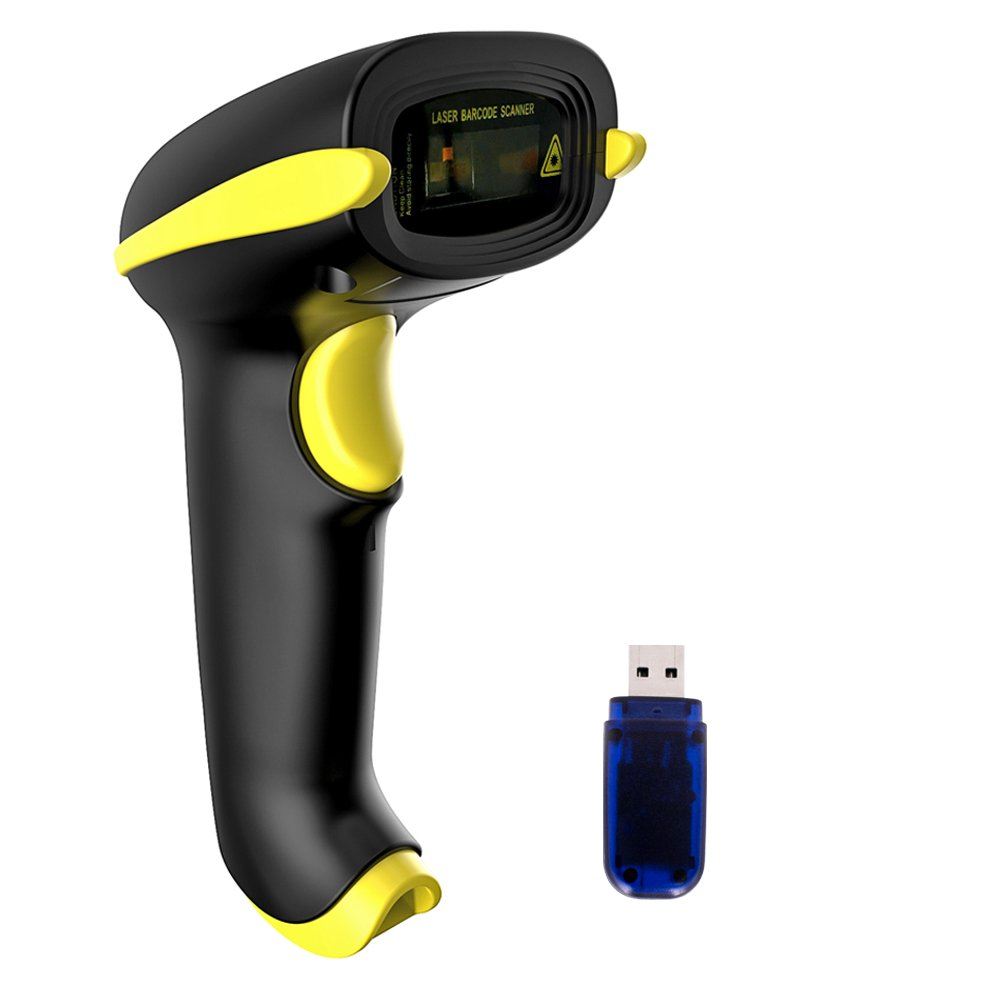
The most commonly used barcode scanners for ShotFlow are handheld laser scanners, such as the one pictured here.
Connection Methods
Handheld scanners can connect to a computer or mobile device in various ways:
- Wired: Connects to the computer using a USB cable. Typically, no driver software is required as it appears as a keyboard.
- Wireless with Dongle: This is the most common type. The scanner is rechargeable or has replaceable batteries and communicates via a dedicated dongle that connects to a USB port. Like the wired type, no special drivers are required.
- Bluetooth: Uses the built-in Bluetooth connectivity of the computer or tablet. Like any Bluetooth device, it must be paired with the host. Depending on the host computer/tablet, a specialized driver may be needed. The most common usage is with a mobile tablet.
Regardless of the connection method, the scanner must be compatible with the operating system (Windows, Mac OS, iOS, etc.). This compatibility and connectivity are independent of ShotFlow and not included in ShotFlow Support.
Features
Most handheld barcode scanners will work with ShotFlow in the "out of the box" configuration once properly connected to the host computer. Some use cases that may require special features include:
- List Search: Many clients want the scanner to insert a carriage return/enter character after each value is scanned to make list search functions faster through a web browser. This may require programming the scanner to add the Enter/Return character automatically upon detecting a valid barcode (refer to Programming the Scanner below).
This may require programming the scanner to add the Enter/Return character automatically upon detecting a valid barcode (refer to Programming the Scanner below).- Samples & Styling Mobile App: For iOS device users who want to use a scanning device instead of the device camera, the scanner should be programmed to add a carriage return or a comma after each scan (refer to Programming the Scanner below). Once programmed, refer to the section on using the Samples & Styling iOS App with Barcode Scanners.
- Custom Configuration: Some scanners can be programmed to read multiple types of barcodes and react differently depending on the barcode. For example, when a scan is recognized as a Code39 barcode, strip off the first 5 digits of a 13-digit number, then enter a comma (refer to Programming the Scanner below).
- Scan and Store: Some scanners can operate disconnected or outside the range of the host computer, allowing for the scanning of multiple items, which are then batch communicated once the scanner is reconnected. This function varies by manufacturer and requires configuration.
Samples & Styling iOS App with Barcode Scanners
- Connect a compatible barcode scanner device to your iOS device and confirm it is reading barcodes accurately, and is adding a carriage return or comma as a suffix.
- When using the scanning function on the mobile app, tap the [keyboard] icon to enable text entry.
- Scan a series of values into the input box.
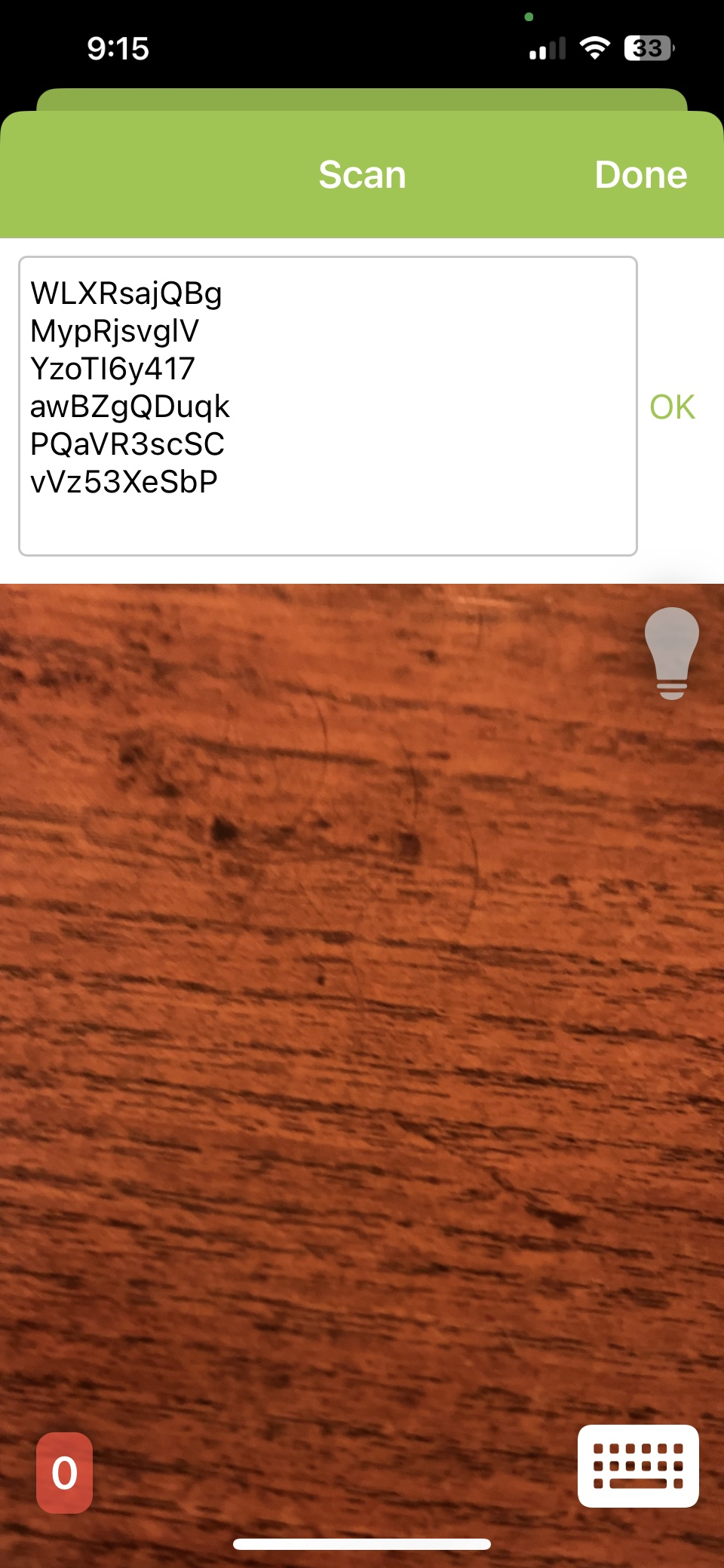
- When all values are scanned, tap [OK] to submit. The text input box is cleared, and the count of unique values that were scanned is displayed in the bottom left corner of the screen. Note this total is inclusive of values submitted through the keyboard function, as well as any values scanned directly through the device camera. This enables switching between the device camera and external scanner within the same scanning session.
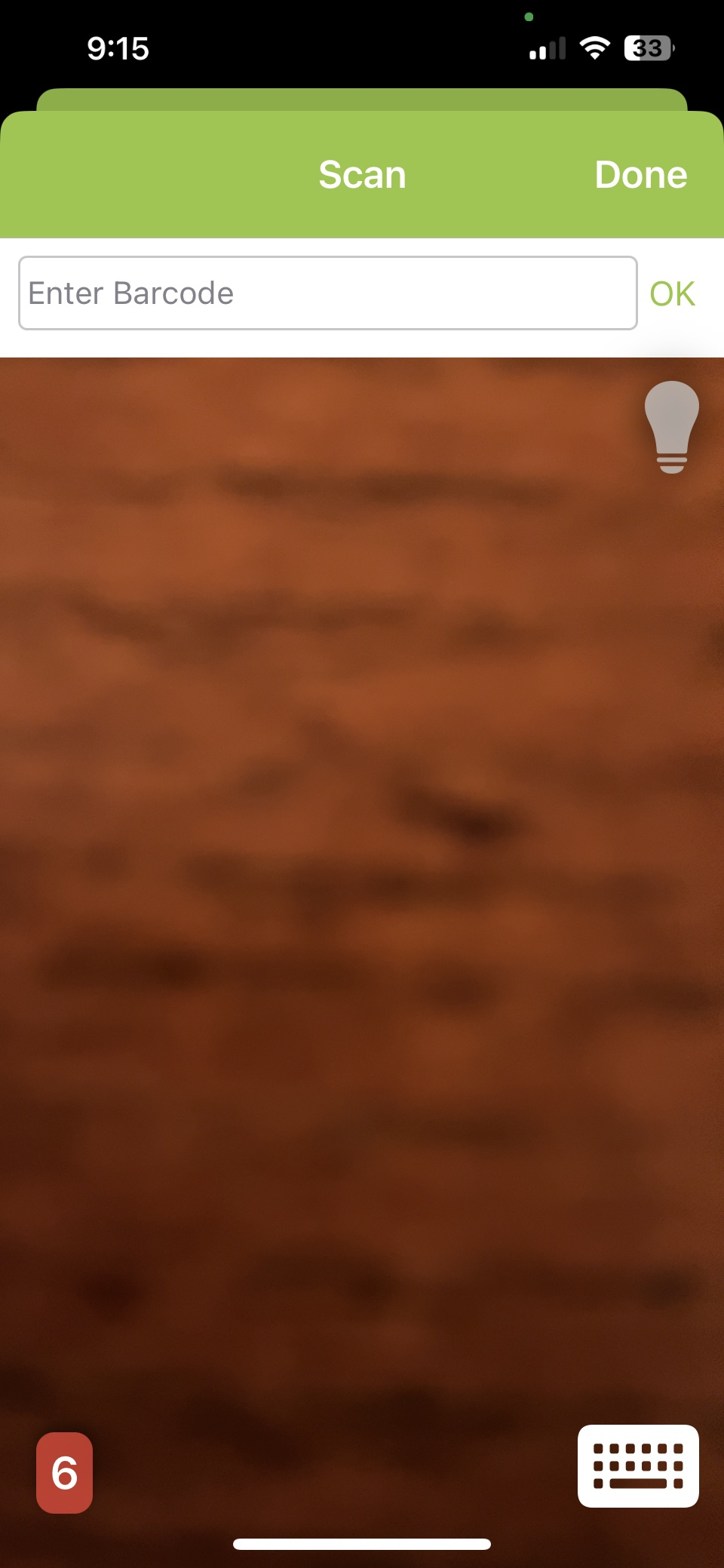
- Tap [Done] to submit the scanned values and see the results on the Scan List screen.
Programming the Scanner
Programming a handheld scanner typically involves using the barcodes in the documentation.
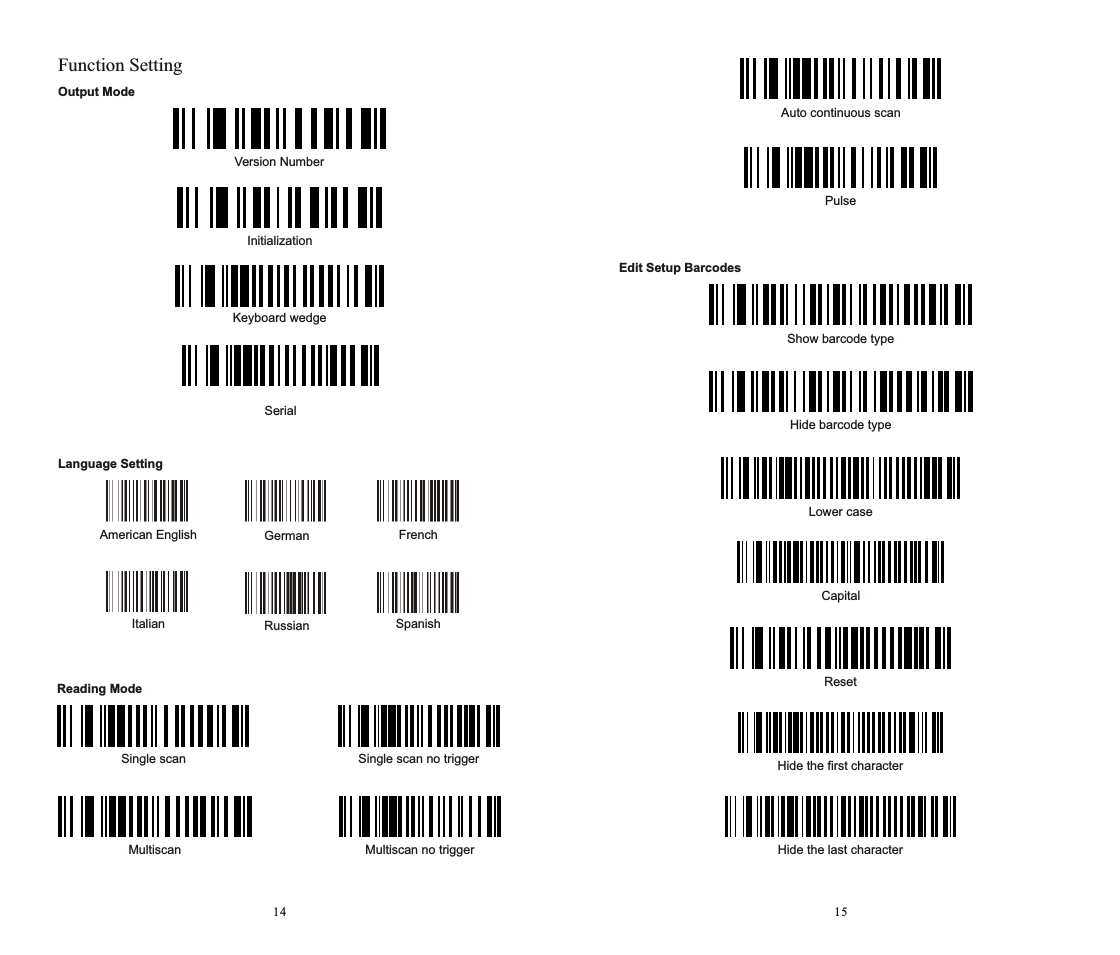
Programming Example: Motorola Symbol Barcode Scanner STB4278 USB
To fix the LS4278 scanner to change from a TAB suffix to an ENTER suffix:
- Access the Product Reference Guide PDF here (Specific instructions are on page 5-13 at the bottom, but they are also included below).
- Scan the following barcodes in order on page 5-14:
- The barcode with "Scan Options" printed beneath it.
- The barcode with "<DATA> <SUFFIX>" printed beneath it.
- The barcode with "Enter" printed beneath it.
- By following these guidelines, you can ensure your barcode scanner is properly configured and ready to use with ShotFlow.
Was this article helpful?
That’s Great!
Thank you for your feedback
Sorry! We couldn't be helpful
Thank you for your feedback
Feedback sent
We appreciate your effort and will try to fix the article